
Build one UTM-tagged link right now using the Google Campaign URL Builder, filling in utm_source, utm_medium, and utm_campaign with lowercase values you'll reuse on every post. Paste that link into your bio or caption, then check Google Analytics 4 under Acquisition > Traffic acquisition within 24 hours. You'll see exactly which platform and placement sent the click, not just a vague spike in "referral" traffic that tells you nothing.

That's the entire mechanic. Everything else in creator marketing analytics, from the five standard UTM fields to naming conventions to GA4 reporting quirks, is refinement on top of that one action.
Key Takeaways
UTM tracking for creators turns undifferentiated traffic into source-level, medium-level, and campaign-level data you can actually act on, using five free standard parameters.
| Point | Details |
|---|---|
| Build one link first | Use the Google Campaign URL Builder to create and test a single tagged URL today. |
| Lock a small vocabulary | Document source and medium values in one shared sheet before creating more links. |
| Test before publishing | Click your own link in a private window and confirm it appears in GA4 real-time reports. |
| Check GA4 weekly | Review Traffic acquisition and campaign filters to catch fragmentation early. |
| Consider a managed network | Cult Media standardizes UTM tagging across creators for consumer apps scaling guaranteed-view campaigns. |
Table of Contents
- What Is UTM Tracking for Creators and Why It Matters
- How Do You Build a UTM-Tracked Link?
- What Do the Five UTM Parameters Actually Do?
- What Naming Convention Should Creators Use?
- How Do You Test a UTM Link Before Launch?
- Where Do You Find UTM Data in GA4?
- What Mistakes Fragment Creator UTM Data?
- What Free Tools and Templates Should Creators Use?
- What Actually Matters When You Track Creator Campaigns?
- How a Managed Creator Network Handles Tracking at Scale
- Sources
- FAQ
What Is UTM Tracking for Creators and Why It Matters
UTM tracking for creators means attaching small tags to the end of a URL so analytics platforms can tell you the exact source, medium, and campaign behind every click, instead of lumping everything into "social" or "unknown." The tags themselves are called UTM parameters, short for Urchin Tracking Module, and they've been the standard method for passing campaign metadata to analytics tools for nearly two decades.
Here's why this matters more for creators than it does for a typical brand marketer. A brand usually runs a handful of paid channels with built-in attribution. A creator posts the same link across Instagram bio, TikTok caption, YouTube description, a Substack newsletter, and maybe a podcast show note, all pointing at the same landing page. Without tags, your analytics dashboard sees one undifferentiated pile of traffic. With tags, you see which platform actually converts, which placement gets ignored, and which campaign is worth repeating.
Five parameters make up the full toolkit: utm_source, utm_medium, utm_campaign, utm_content, and utm_term. Free builders like the Google Campaign URL Builder let you generate tagged URLs in seconds with no software cost, and UTM.io's guidance confirms these five tags remain the accepted standard across every major analytics platform. The rest of this guide shows you how to use them without creating a mess.
How Do You Build a UTM-Tracked Link?
Building a working UTM link takes five steps, and skipping the validation step is the single most common reason creator tracking data turns out useless three weeks into a campaign.
- Pick your destination URL. This is the exact page you want traffic to land on, app store listing, landing page, or blog post. Copy it in full before adding anything.
- Decide your
utm_sourceandutm_mediumvalues. Source is the platform (instagram, tiktok, newsletter). Medium is the channel type (social, email, video). Lock these in before you start tagging, because UTM.io recommends keeping source and medium as a small, closed vocabulary you never improvise on. - Name your
utm_campaign. Use the promotion or launch name, something likespring_launchorcreator_partnership_q1. - Build the URL in a tool. Drop your values into the Google Campaign URL Builder or a similar free tool like UTMBuilder or the creator-focused UTM tool from Creator's Agency, and generate the full tagged URL.
- Validate the final URL. Paste it into a private browser tab and confirm it loads the right page with the query string intact.
A finished example looks like this:
https://yourapp.com/download?utm_source=instagram&utm_medium=social&utm_campaign=spring_launch&utm_content=bio_link
That's an example only, not a live link, but it shows the pattern: source, medium, campaign, then content, always in the same order, always lowercase.
If your destination URL is long or ugly with tags attached, a branded short link or redirect service can shrink it for display while preserving every parameter underneath. This becomes especially useful when you're reading a link aloud in a video or printing it on a slide, since a creator's guide to link tracking notes that redirect setups can preserve UTM data cleanly even when the visible URL gets shortened.
Pro Tip: Stick to lowercase letters and use underscores instead of spaces in every field. GA4 treats "Instagram" and "instagram" as two separate sources, which silently splits your data in half and makes your best-performing channel look weaker than it actually is.
What Do the Five UTM Parameters Actually Do?
Each parameter answers a different question about where a click came from, and creators typically only need three or four of them for most campaigns.
utm_sourceanswers "where did this click originate?" For a creator, that's the platform:instagram,tiktok,youtube,newsletter,podcast.utm_mediumanswers "what type of channel was it?" Use consistent buckets likesocial,email,video,affiliate, rather than one-off labels.utm_campaignanswers "which specific push does this belong to?" This groups a link to a launch, product drop, or content series, likeq1_app_launchorholiday_giveaway.utm_contentanswers "which exact placement or version drove the click?" This is what separates a bio link from a story swipe-up from a pinned comment, even when source and medium are identical.utm_termanswers "what keyword or granular identifier applies?" Originally built for paid search keywords, creators can repurpose it to tag guest names, episode numbers, or specific AI-surface mentions when discovery is nonlinear, a tactic worth reserving for podcasts and long-tail content rather than every link you post.
| Parameter | Purpose | Typical Creator Value | Required? |
|---|---|---|---|
| utm_source | Identifies the platform | instagram, tiktok, newsletter | Required |
| utm_medium | Identifies the channel type | social, email, video | Required |
| utm_campaign | Groups links to a specific push | spring_launch, giveaway_q2 | Required |
| utm_content | Differentiates placement or format | bio_link, story_swipe, pinned_comment | Optional |
| utm_term | Captures granular identifiers | guest_name | Optional |
Omit utm_content and utm_term when a campaign is simple enough that source, medium, and campaign already tell the full story. Adding fields you don't need just gives you more columns to reconcile later.
What Naming Convention Should Creators Use?
The single biggest driver of clean creator analytics is what's called the limited-vocabulary rule: pick a small, fixed set of values for source and medium, write them down once, and never deviate. Growth teams that follow this approach treat their naming rules the way they'd treat financial reporting standards, consistency beats creativity every time, because a dashboard with fifteen variants of "instagram" is a dashboard nobody trusts.
A few rules keep the system from drifting:
- Lowercase everything, always, with no exceptions for proper nouns.
- Use underscores or hyphens as separators, and pick one, not both.
- Ban synonyms. If "insta" and "instagram" both exist in your sheet, merge them immediately.
- Keep labels as short as they can be while still being readable six months later.
- Store the entire canonical list in one shared spreadsheet everyone on the team can access before they build a new link.
Three templates cover most creator use cases:
Link-in-bio: utm_source=instagram&utm_medium=social&utm_campaign=[campaign_name]&utm_content=bio_link
Story swipe-up: utm_source=instagram&utm_medium=social&utm_campaign=[campaign_name]&utm_content=story_swipe
Newsletter CTA: utm_source=newsletter&utm_medium=email&utm_campaign=[campaign_name]&utm_content=cta_button
For paid versus organic distinction, keep utm_source identical but shift utm_medium. An organic creator post uses social, while a boosted or sponsored version of the same post uses paid_social. This single change lets you split spend-driven traffic from earned traffic without touching your source vocabulary at all, which matters once you start layering paid promotion on top of organic posts and need to see how paid and organic totals get calculated separately inside your reporting tool.
How Do You Test a UTM Link Before Launch?
Every tagged link needs a QA pass before it goes live, because a broken or mistyped UTM is invisible until you're staring at a reporting gap three weeks into a campaign.
Run through this before publishing:
| QA Check | What to Verify |
|---|---|
| Final destination | The URL loads the correct page with no redirect errors |
| UTM values | Source, medium, and campaign match your documented sheet exactly |
| Encoding | Spaces and special characters are properly encoded, not left raw |
| Redirect behavior | If using a short link, the underlying UTM string survives the redirect |
| Real-time test | A test click appears in GA4 real-time reports within minutes |
Assign each link a status, draft, approved, active, or archived, and review active links weekly during a campaign, then again at campaign close to archive anything no longer in rotation. This keeps your naming sheet from becoming a graveyard of dead links nobody remembers creating.
Pro Tip: When you're using a branded redirect or shortener, click the link yourself and check the browser's address bar after it resolves. If the UTM parameters vanish after the redirect, your shortener is stripping them, and you'll want to switch to one that explicitly preserves query strings.
Where Do You Find UTM Data in GA4?
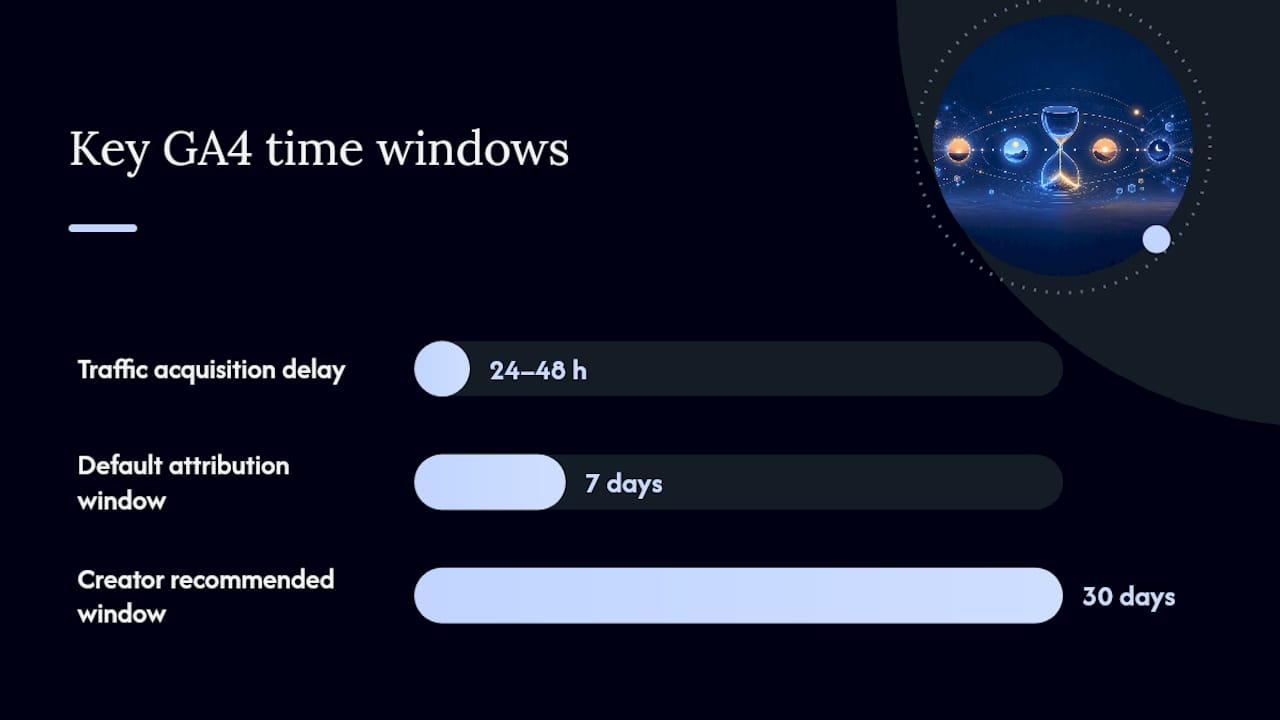
GA4 surfaces UTM-tagged traffic under Reports > Acquisition > Traffic acquisition, where source and medium appear as dimensions you can filter and compare directly. Campaign, content, and term values show up when you add them as secondary dimensions or build a custom exploration report.
Confirm the data is actually flowing with this sequence:
- Click your own tagged link in an incognito window immediately after publishing.
- Open GA4's real-time report and confirm the session shows the correct source and medium within a few minutes.
- Wait 24 to 48 hours, then check the standard Traffic acquisition report to confirm the session persisted past the real-time window.
- Filter by campaign name to confirm all your content variants (bio link, story, newsletter) roll up under the same campaign but split cleanly by content value.
- If you have conversion events set up, check whether they're attributed to the correct source and medium, not defaulting to "direct."
A short list of limitations will save you from misreading your own numbers:
- In-app browsers on Instagram and TikTok sometimes handle cookies differently than a standard browser, which can affect session attribution.
- Ad blockers and privacy-focused browsers can strip tracking scripts entirely, undercounting real traffic.
- Delayed conversions, someone clicks today but downloads next week, often get miscredited to "direct" if your attribution window is too short.
- AI-driven discovery and clipped content circulating outside your original post can obscure the true first-touch source.
Google's own Analytics documentation recommends reviewing your attribution settings and lookback window, since a default seven-day window can undercount slower-moving creator campaigns where a viewer bookmarks a link before acting on it. For creator-driven funnels specifically, a 30-day lookback window tends to capture more of the delayed-conversion behavior typical of organic discovery, since not everyone who watches a video converts the same day. Reading raw view counts against impressions side by side also helps you avoid crediting a UTM link for traffic that never actually saw the call to action.
What Mistakes Fragment Creator UTM Data?
Most tagging errors are small and preventable, but they compound fast across a multi-platform campaign.
- Inconsistent casing splits one source into three. "TikTok," "tiktok," and "Tik_Tok" all read as different sources to GA4.
- Typoed source names create phantom channels. A single missing letter in
instagramwon't error out, it'll just quietly create a new row in your report. - Over-tagging simple links adds
utm_contentandutm_termto campaigns that don't need that granularity, cluttering reports without adding insight. - Misusing
utm_termfor general labeling instead of reserving it for granular identifiers like guest names or paid search keywords defeats its purpose. - Forgetting to test redirects means a shortener silently drops your parameters and you don't find out until your campaign report shows almost no tagged traffic at all.
Watch for two red flags in your dashboard that signal something's broken: a long list of low-volume, near-identical source names (a casing or typo problem), or an unexpected spike in "direct" traffic right when a campaign should be driving "social" or "referral" sessions instead. The UTM playbook from Linq points to this exact pattern as the clearest sign a redirect is stripping tags before the click ever reaches your analytics.
The fix for nearly every one of these mistakes is the same: go back to your documented, limited vocabulary, and don't let anyone on the team invent a new value on the fly.
What Free Tools and Templates Should Creators Use?
You don't need paid software to run clean UTM tracking. A handful of free tools cover the entire workflow from building to shortening.
| Tool | Best For |
|---|---|
| Google Campaign URL Builder | Quick, one-off link generation with no signup |
| UTMBuilder (utmbuilder.net) | Fast builds with a simple, distraction-free interface |
| Creator Campaign UTM Tracking (creatorsagency.co) | Creator-specific fields and templates built for influencer campaigns |
| Branded short link service | Hiding long tagged URLs behind a clean, readable redirect |
Three copyable templates worth pinning to the top of your naming sheet:
Bio link: utm_source=[platform]&utm_medium=social&utm_campaign=[campaign_name]&utm_content=bio_link
Story or swipe-up: utm_source=[platform]&utm_medium=social&utm_campaign=[campaign_name]&utm_content=story_swipe
Newsletter CTA: utm_source=newsletter&utm_medium=email&utm_campaign=[campaign_name]&utm_content=cta_button
A shared spreadsheet should be the single source of truth for every value you've ever used, not just a reference you check occasionally. A naming convention template built for creators and small teams lays out exactly this structure: one tab for canonical values, one tab for active campaigns, and a status column so nobody rebuilds a link that already exists. Pair that taxonomy with branded short links and a simple dashboard, and you get what's sometimes called a layered reporting system, structured enough to stay usable without turning into a spreadsheet nobody opens.
What Actually Matters When You Track Creator Campaigns?
Clicks feel good to report, but clicks are the easiest number to inflate and the hardest to act on. What actually moves a campaign forward is tracing a tagged link all the way to a download, a signup, or a purchase, then comparing that conversion rate across creators and placements, not just comparing raw traffic volume.
The operational trade-off shows up most clearly around campaign-specific tags versus evergreen links. A short-lived campaign tag, one you retire after 30 or 60 days, makes sense for a product launch or a limited promotion where you need a clean before-and-after comparison. An evergreen link, one that stays live in a creator's bio for months, needs a more stable utm_campaign value like always_on or bio_permanent, otherwise every reporting period looks like a fresh campaign instead of an ongoing channel. Mixing the two conventions without deciding in advance is how teams end up with a spreadsheet full of near-duplicate campaign names that nobody can cleanly compare six months later.
Verified audience quality matters just as much as the tagging discipline itself. A perfectly tagged link pointed at a creator with an inflated or bot-heavy audience will still produce clean-looking data that leads to the wrong decision. Tracking tells you where clicks came from. It doesn't tell you whether those clicks were ever going to convert in the first place.
How a Managed Creator Network Handles Tracking at Scale
Building and QA-ing UTM links works well for a handful of creators posting on your behalf. It gets harder to manage once you're coordinating dozens of creators across TikTok, Instagram, and YouTube, each posting on their own schedule with their own link-in-bio setup.
Cult Media runs UTM tracking as a built-in part of every managed campaign, not an afterthought creators are asked to handle themselves. Every creator in the network gets a standardized, pre-tagged link tied to a shared naming sheet, so source, medium, and campaign values stay consistent across every post instead of fragmenting the way DIY tagging often does once more than two or three people are building links independently. Campaigns run on a commission-only model tied to verified organic views, meaning you're paying for confirmed results, not a flat retainer regardless of outcome.
DIY tagging is the right call when you're running your own account or a small handful of partnerships you can track by hand. Once you're scaling creator-driven user acquisition and need guaranteed view volume with performance-based pricing, a managed network removes the naming-convention babysitting and gives you one canonical UTM sheet a dedicated team maintains on your behalf. If you're a consumer app looking to scale downloads through creator content, you can see how Cult Media's guaranteed view campaigns work and get a sense of what a managed setup looks like before committing.
Sources
- UTM parameters best practices — UTM.io blog
- The creator's UTM playbook for measuring cross-platform growth — Linq Direct
- The creator's guide to UTM parameters and link tracking — NullMark
- UTM parameters — Wikipedia
FAQ
Is UTM Tracking Free?
Yes. Builders like the Google Campaign URL Builder, UTMBuilder, and the Creator Campaign UTM Tracking tool from Creator's Agency are all free to use, and GA4 itself requires no paid subscription to view UTM-tagged traffic.
How Do I Create a Trackable UTM Link?
Choose your destination URL, decide on lowercase utm_source, utm_medium, and utm_campaign values, then generate the tagged link in a free builder and test it in a private browser tab before publishing.
How Can I Track a UTM Link Once It's Live?
Open GA4, go to Reports > Acquisition > Traffic acquisition, and filter by source and medium to see the tagged traffic. A real-time test click shortly after publishing confirms the tag is firing correctly.
What Is UTM Tracking Used For?
It identifies exactly which platform, placement, and campaign drove a click, letting creators and marketers compare performance across Instagram, TikTok, newsletters, and other channels instead of guessing from a single lumped traffic number.
Do Ad Blockers Affect UTM Tracking?
Yes. Ad blockers and privacy browsers can strip tracking scripts before a session registers, which undercounts real traffic and is worth factoring in when comparing conversion rates across platforms with different blocker adoption rates.